Planning lessons
While it is possible to run rooms in Gameface with minimal preparation (you can launch quizzes and tasks at will while a room is running) you'll have an easier and less stressful time if you plan ahead by setting an agenda for your rooms before you launch them.
How agendas work
An agenda in Gameface is simply a sequence of timed activities, like quizzes, volunteer tasks or class-wide tasks.
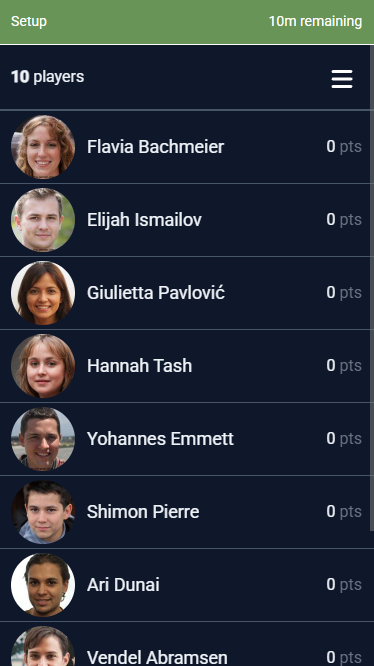
If you are controlling a room that has an agenda set you will see a status bar at the top of the remote control (see Figure 1a) showing the name of the current activity, and how much time is remaining for it. If you go over time on an activity the indicator will go red, but nothing else will happen (the activity won't be automatically closed or anything like that).
 |  |  |
| a | b | c |
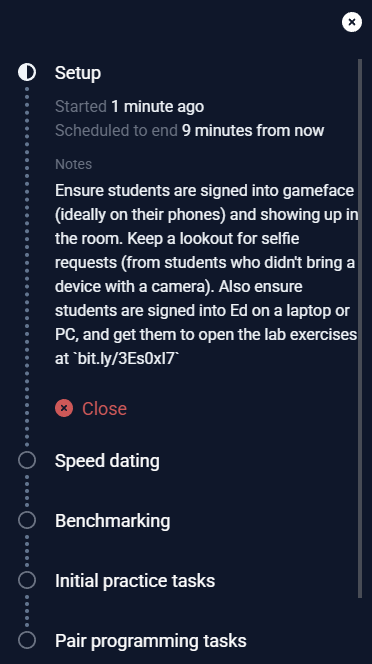
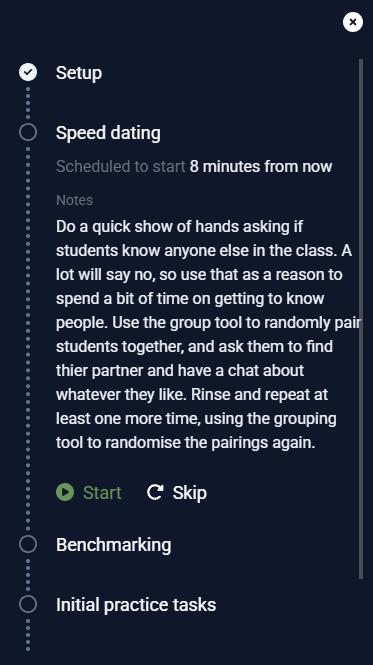
Figure 1: A remote control with an agenda | ||
Clicking on the agenda status bar will reveal the full agenda (see Figure 1b). You can navigate through the agenda to preview future activities, and either close or skip activities to progress through the agenda. For example if the user were to click Close to end the Setup activity in Figure 1b, the agenda would progress to the Speed dating activity shown in Figure 1c.
The icons next to each agenda item denote their status:
pending
in progress
completed
skipped
Agendas are not shared with students, and timed activities will never expire or be automatically closed if you go over time.
Timings in an agenda are intended as suggestions to help you stay on track, rather than something that will hold you strictly accountable.
Setting an agenda
You can set an agenda when you create a room. Simply click the icon under the What will happen in this room heading to add an agenda item (see Figure 2)
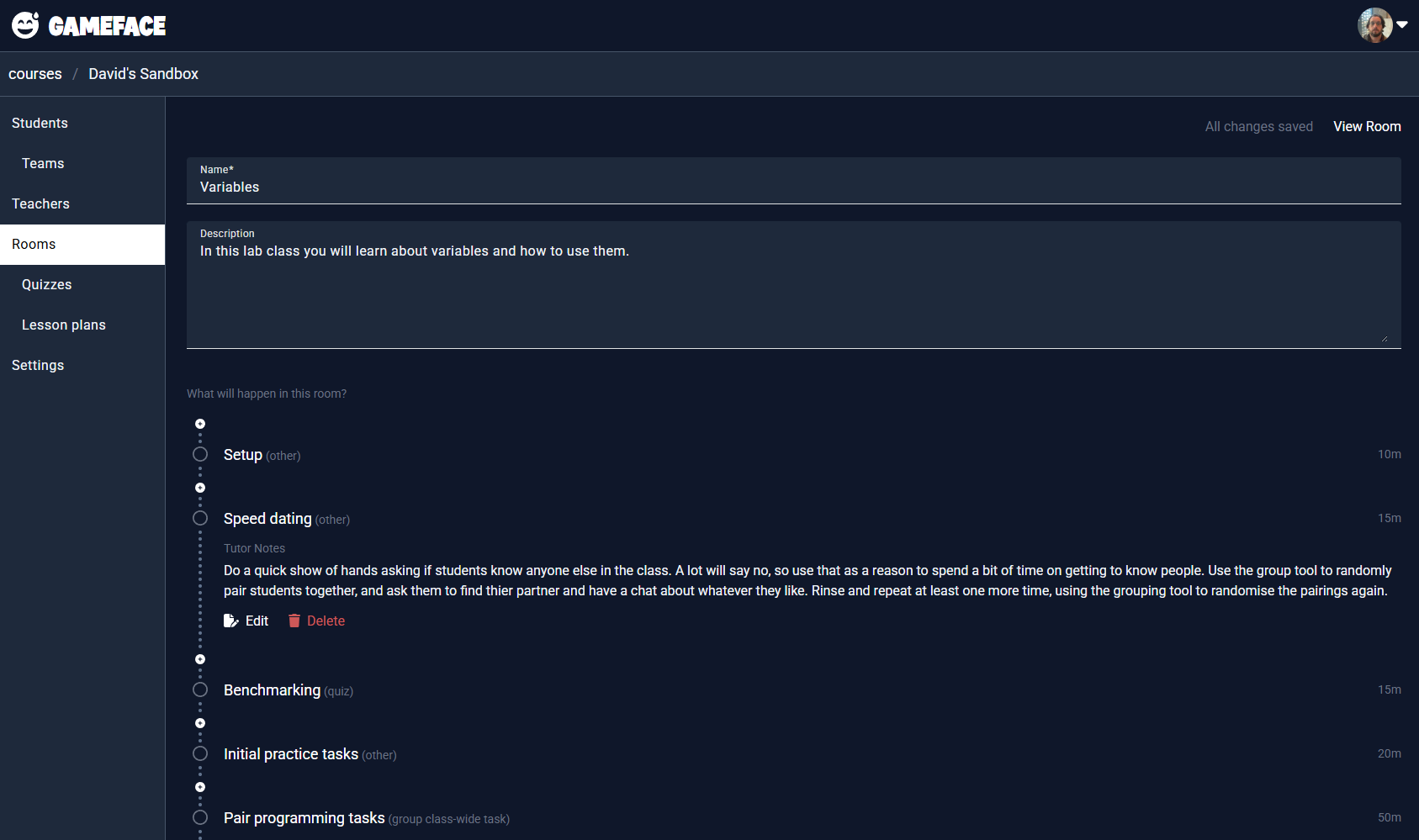 |
| Figure 2: Creating a room with an agenda |
For each activity you will need to provide a title and an estimated duration. You can also optionally provide tutor notes to serve as a reminder of any information or instructions that you might want on hand while running the activity (since these will be available to you in the remote control as described above).
There are four different types of agenda items you can create:
- A quiz (as described here)
- A volunteer task (as described here)
- A class-wide task (as described here)
- An "other" activity, which is simply a placeholder for class-time that you will spend doing something other than one of the activities listed above (i.e., letting the class get set up and settled in, giving a mini lecture, etc).
Don't feel the need to plan out every single activity in advance. Volunteer tasks in particular are light-weight enough that you can launch them on demand (for example in the middle of your mini lecture).
Creating repeatable lesson plans
If you manage a large cohort then you probably need to run multiple classes each week that share the same content, or coordinate a team of tutors to do so. In this case it is highly advisable to create a lesson plan that can be reused to ensure consistent delivery across multiple rooms.
To create a lesson plan, simply navigate to the Lesson plans tab within a given course, and then click New. From that point the process for creating a lesson plan is identical to the process described above for defining the agenda of an individual room.
Once a lesson plan has been created it can be used to launch corresponding rooms by either:
- Navigating to the lesson plan, clicking in the top right corner and selecting Create Room
- Navigating to the Rooms tab, clicking New and then selecting the lesson plan.
If you manage a team of tutors then be sure to use the tutor notes to leave them reminders of what they should be doing and what to look out for during each activity.