Understanding Gameface scores
While a student is using Gameface in class, they will see three different scores:
- The main score is simply a number that increases whenever a student engages positively by participating actively or demonstrating understanding. This score provides a motivational focal point for students but it should not be used for formal assessment (we'll explain why, and what to use instead in the next page.)
- The participation score measures how much a student is participating actively during class. If they act like a passive wallflower, they will get a low participation score. If they dive in, they will get a high participation score.
- The understanding score measures how well a student demonstrates their knowledge and ability while participating. If they have no idea what they are doing, they will get a low understanding score. If they have a good idea what they are doing, they will get a high understanding score.
Both participation and understanding are split into health and armour. We'll explain the difference in a bit, but for now just know that if a student gets 100 participation health and 100 understanding health then they are doing great and deserve full marks.
You should treat these scores as confidential. Outing a student who has low scores will be very detrimental to their self esteem and motivation.
The only time Gameface will ever publicly reveal the scores of an individual student is if they place in the top three and earn a place on the podium; otherwise, scores remain private between the student and teaching staff.
How participation is calculated
Participation tracks how consistently a student chooses to engage when given the option. Gameface offers three opportunities to earn or loose participation:
- Quiz Questions: Students lose participation points if they skip answering.
- Volunteer Tasks: When volunteers are requested, only students who opt in are eligible. Opting out decreases their participation score.
- Class-wide Tasks: Students must manually mark tasks as complete. Failing to do so reduces their participation score.
If a student engages with every available opportunity, they will achieve a perfect participation health score (100). If they avoid every opportunity, their participation health will be 0.
Some tasks are group-based; in these cases, participation decisions and scores are shared among all group members. This encourages collaborative decision-making and shared accountability.
How understanding is calculated
Understanding is assessed based on the quality of a student’s contributions. There are three mechanisms:
- Quiz Questions: Correct answers increase understanding. Incorrect or skipped answers reduce it (for non-bonus questions only).
- Volunteer Tasks: If a student is selected, the tutor rates their contribution (good, ok, or poor). Ratings of "ok" or "poor" reduce the understanding score. Understanding is not penalized if a student is not selected for a tas
- Class-wide Tasks: Similarly, the tutor rates student contributions. Only tasks where feedback is given affect understanding scores.
Again, for group tasks, all group members receive the same rating and resulting score adjustment.
How bonus questions and tasks impact scores
Bonus tasks are optional and risk-free. They do not reduce participation or understanding, even if answered incorrectly or completed poorly. They are intended to provide students with a low-stakes opportunity to recover points if they fall behind during a session.
If a student has already reached full health in either dimension, bonus points overflow into armour. Any future lost points will be taken away from armour before impacting health. We'll explain the implications of this more in the next page, but the idea here is to make assessment more forgiving.
Viewing and explaining scores
After a class has concluded (i.e. after a room has been closed), then both teachers and students can access detailed breakdowns of everything that happened during the session and how this impacted the scores.
To access this breakdown, simply:
- Sign into Gameface and select the relevant course
- Choose Rooms in the sidebar and select the relevant room
- Select a particular attendee.
Here is an example breakdown:
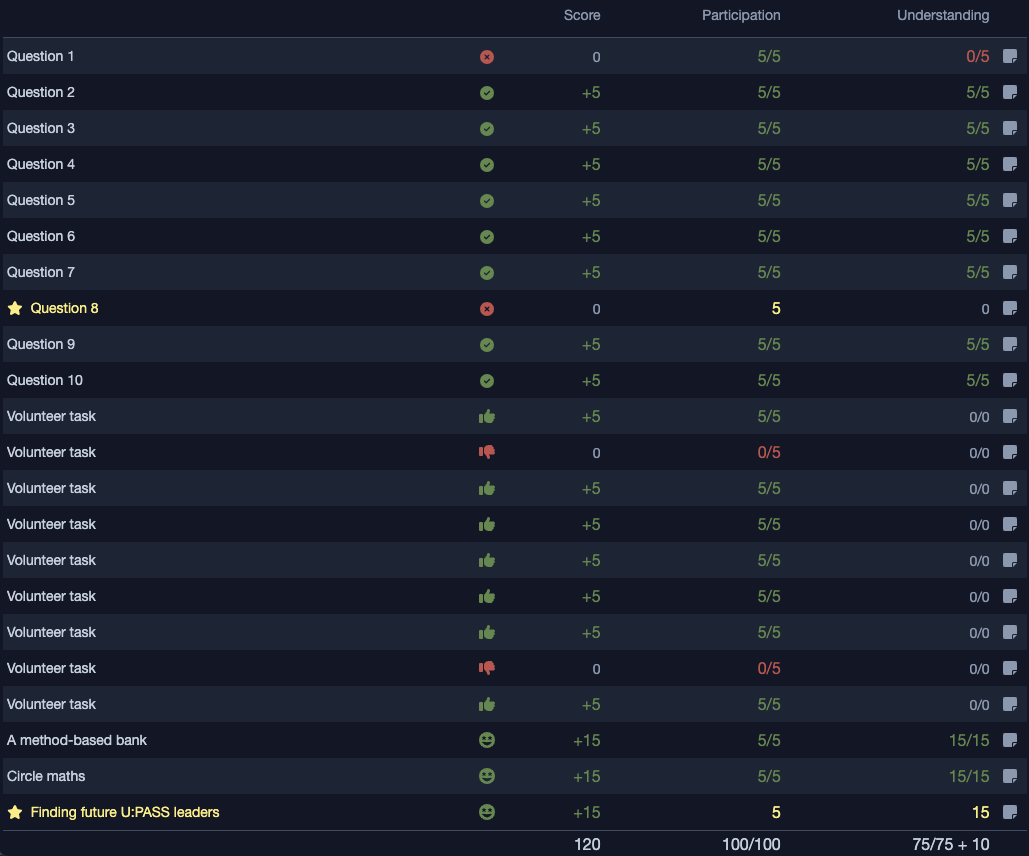
In the table there is one row for every quiz question, volunteer task, or class-wide tasks that occurred during the class. Bonus questions/tasks are indicated with a gold star.
The icons indicate what the student did in response to the activity, for example whether they answered the question correctly, whether they opted into a volunteer task, what feedback they received for a class-wide task, etc. You can mouse over/hold down on any of these icons for an explanation.
The score column shows what impact this activity had on the main score, and the number at the bottom of this column is the total score. The participation and understanding columns show you what activity this action had on the student's participation and understanding points respectively. For non-bonus tasks, these values are the ratio of how many points earned vs how many points were offered. For bonus tasks, this will only show how many points were earned. The tally at the bottom of these columns shows the final ratio of how many points earned out of those that were offered (i.e. health) and how many additional points earned over and above the ones that were offered (i.e. armour).
Adjusting scores
In rare instances, you may need to make manual adjustments to a student's scores, for example if:
- You realize too late that one of your quiz questions was incorrectly set up or poorly worded
- You discover students who try to earn marks without actually attending class (i.e. if another student sends a room QR code to them)
- You realize that one member of a group was coasting, and should not get the same feedback/rewards as the rest of their group mates.
You can alter a recorded activity (and thus the resulting scores) by clicking the note icon next to each entry in the score breakdown described above. This will open up a dialog that allows you to make your adjustment, and provide a justification why the adjustment was necessary.
The student's points will be updated automatically in response to any adjustments you make.
The explanation you provide here will be visible to students, so please make an effort to ensure your rationale is clear.
If you are coordinating a team of tutors, then it may be worthwhile discussing what situations do and do not warrant adjustments, and developing a cheat-sheet of explanations that tutors can copy/paste to keep things consistent.